Companies House Identity Verification: A Step by Step Guide
How to Complete Companies House Identity Verification
Using the online method, we found it easiest to complete the full process using a smartphone rather than jumping between a computer and a phone.
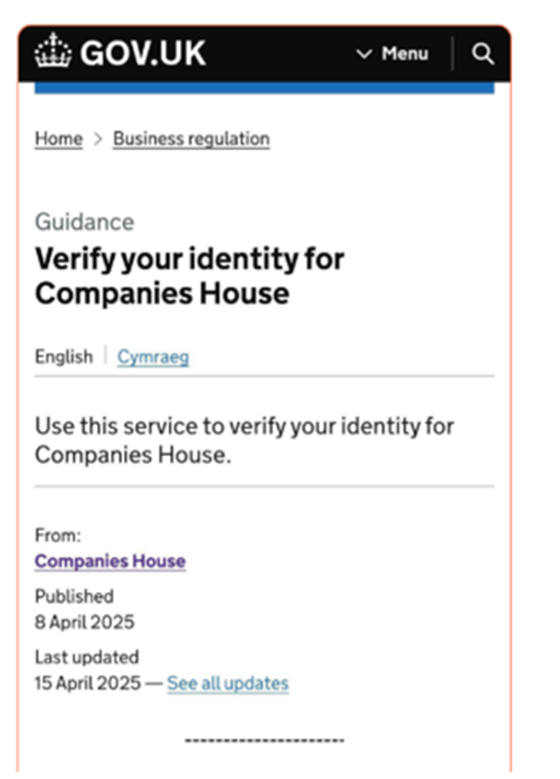
Step 1: Go to the page shown below by clicking here.
or click on URL: https://www.gov.uk/guidance/verify-your-identity-for-companies-house
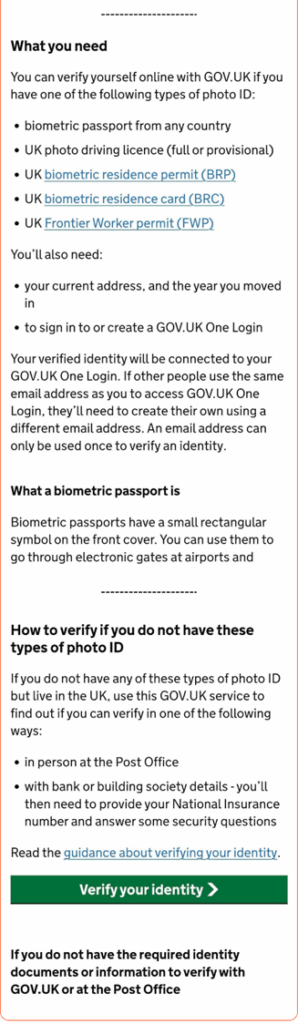
Step 2: Scrolling down, this page lists what you’ll need, at the bottom click Verify your identity.
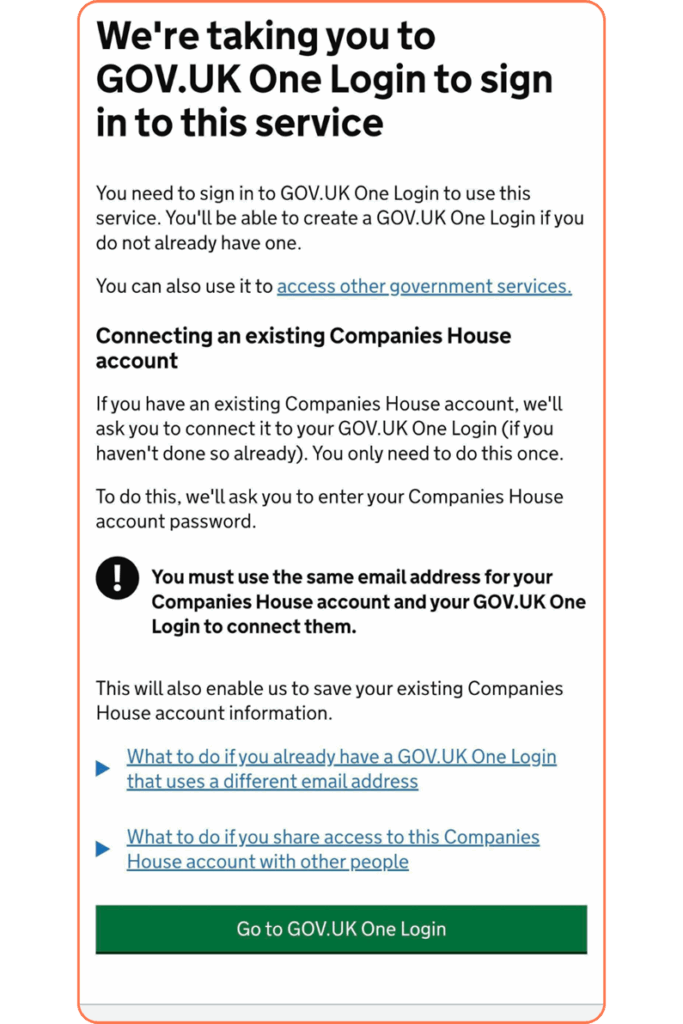
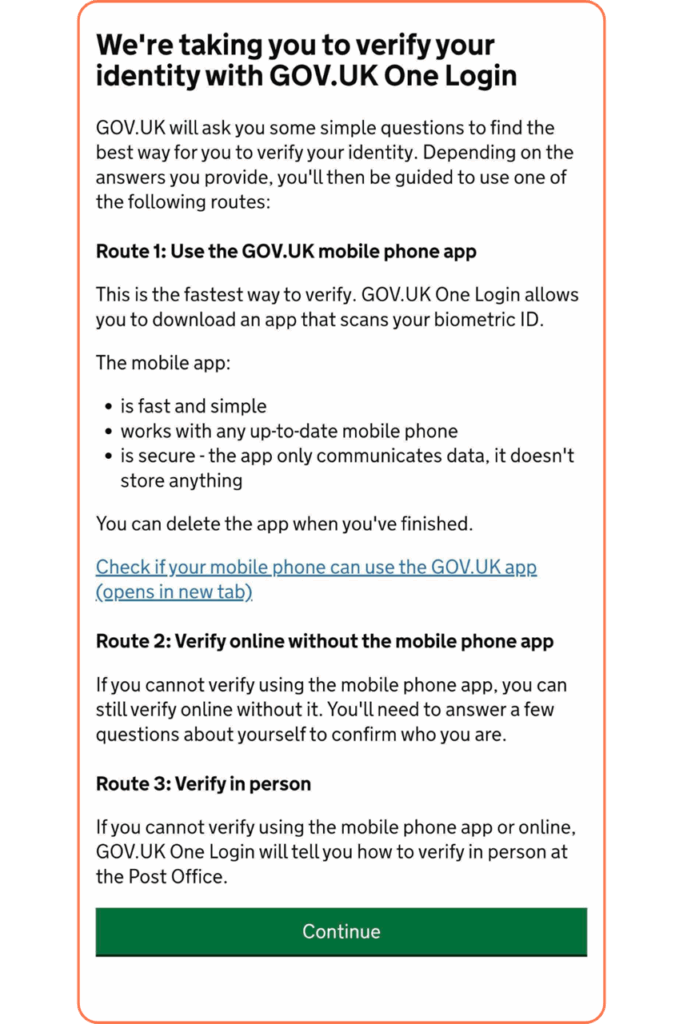
Step 3: Click Go to GOV.UK One Login
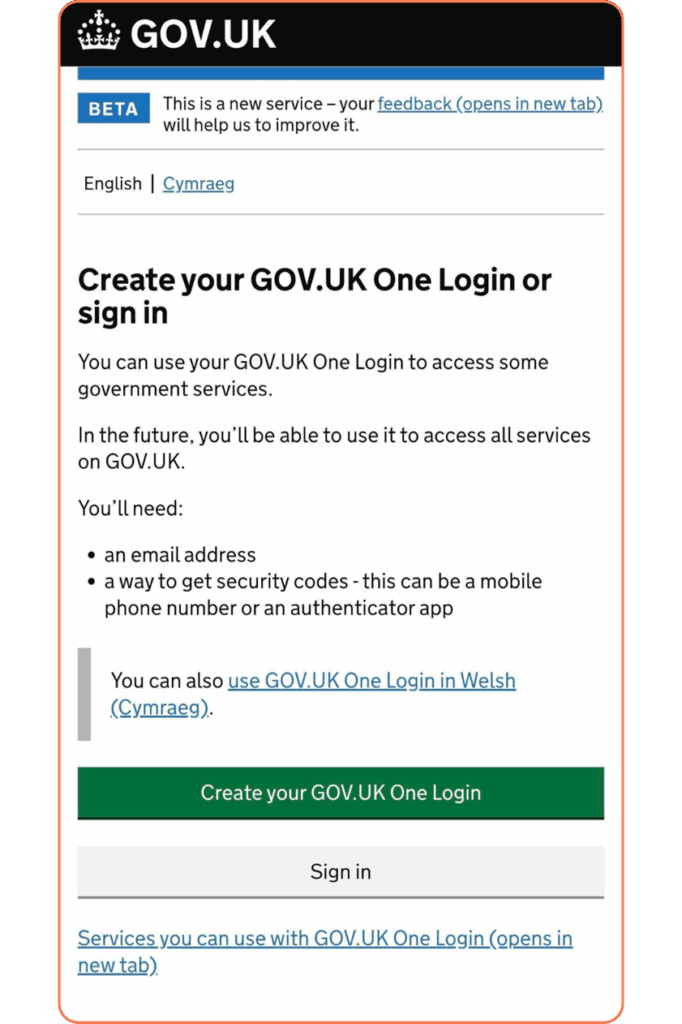
Step 4: Click Create your GOV.UK One Login
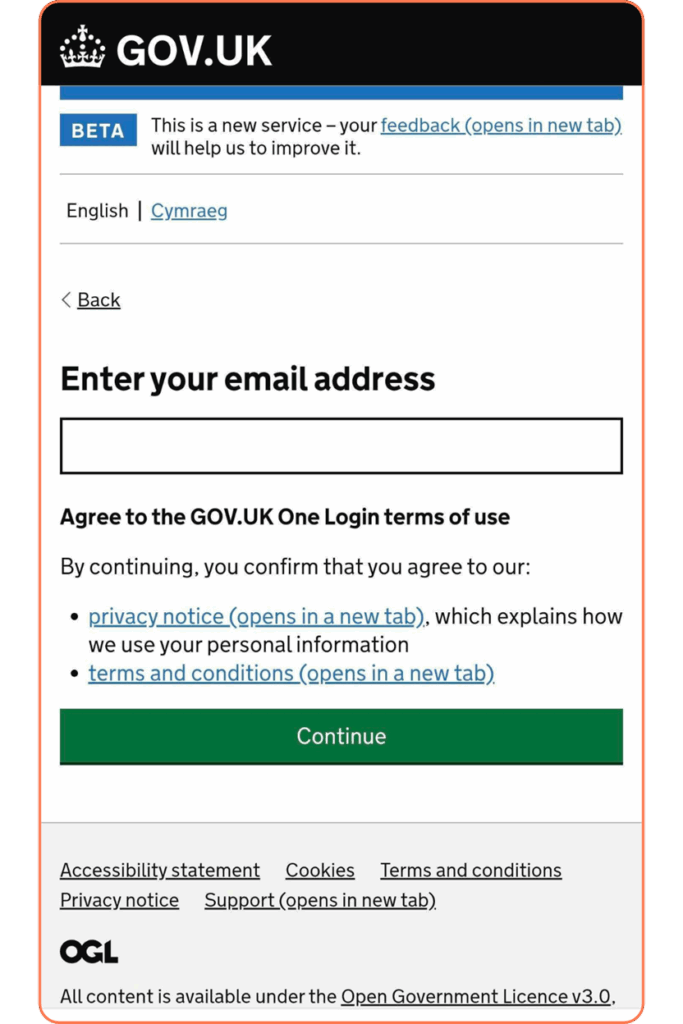
Step 5: You MUST enter the email address associated with your Companies House account. Then Continue.
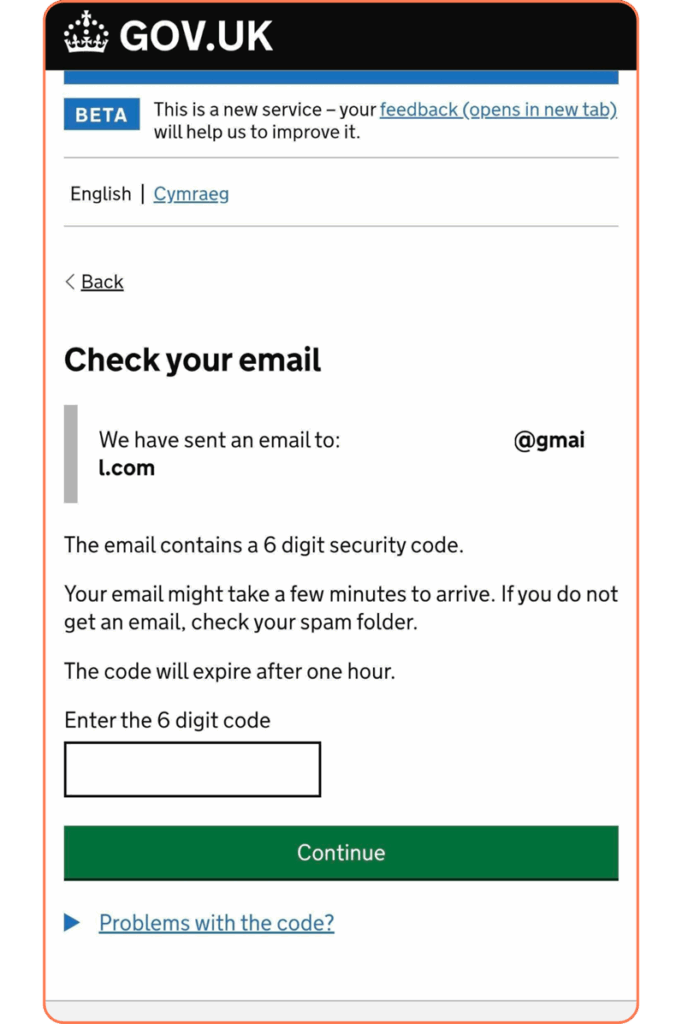
Step 6: Input the 6 digit security code sent to your email and Continue.
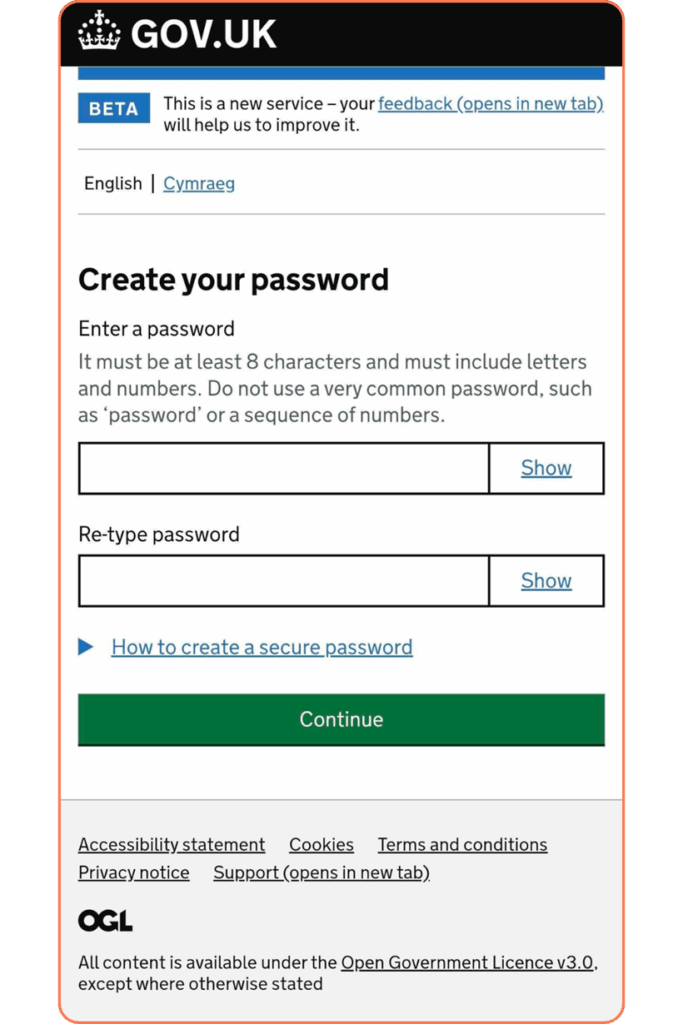
Step 7: Create your password and Continue. After this, you’ll need to set up 2 factor authentication via your mobile number or authenticator app.
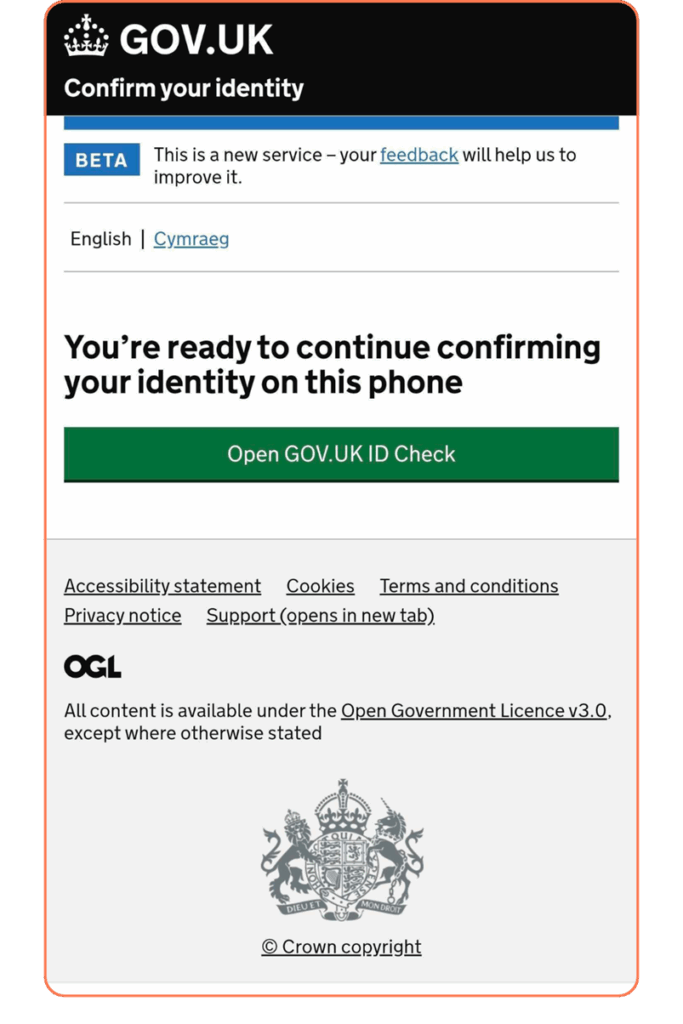
Step 8: Once you’ve created your GOV.UK One Login, you’re ready to start ID verification. Click Open GOV.UK ID Check.
Step 9: Select whether your identity has been verified yet, if not, select No and then Continue.
Step 10: Again, click Continue.
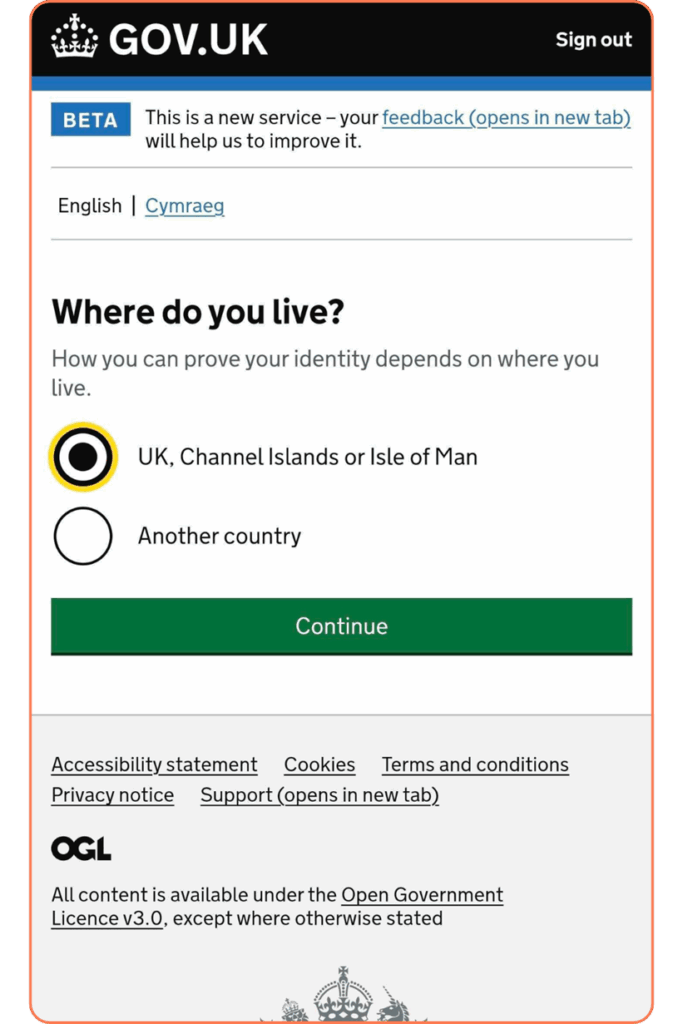
Step 11: Answer whether you live in the “UK, Channel Islands or Isle of Man” or “Another country”, then click Continue.
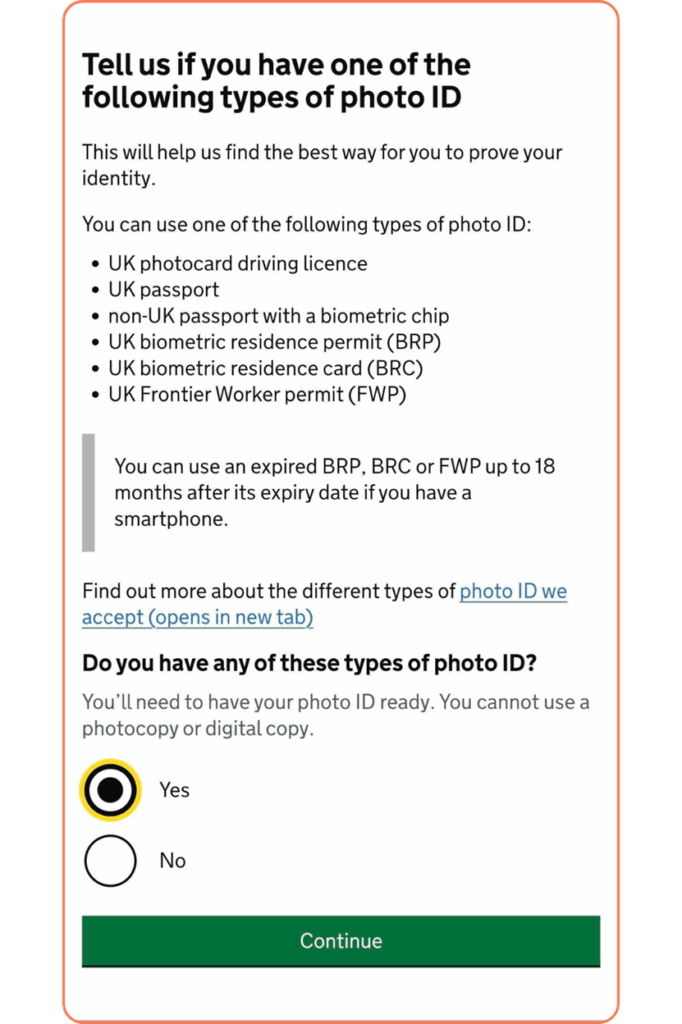
Step 12: Select whether or not you have the types of photo ID and Continue.
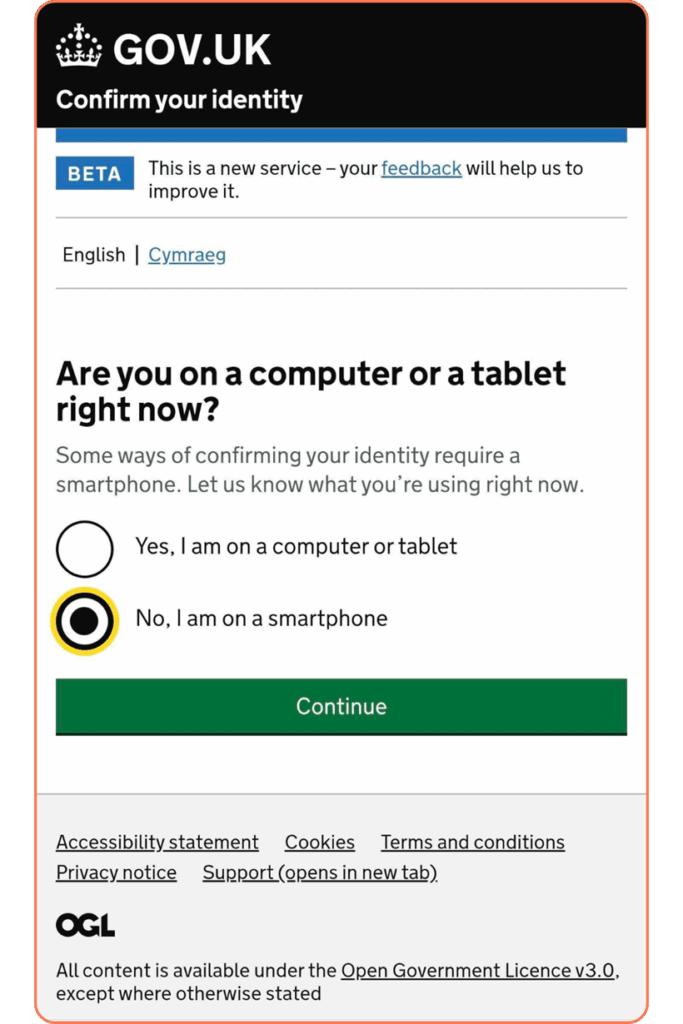
Step 13: Select whether you are on a Computer or Tablet or Smartphone. We recommend doing this on a Smartphone which we’ve selected here. Click Continue.
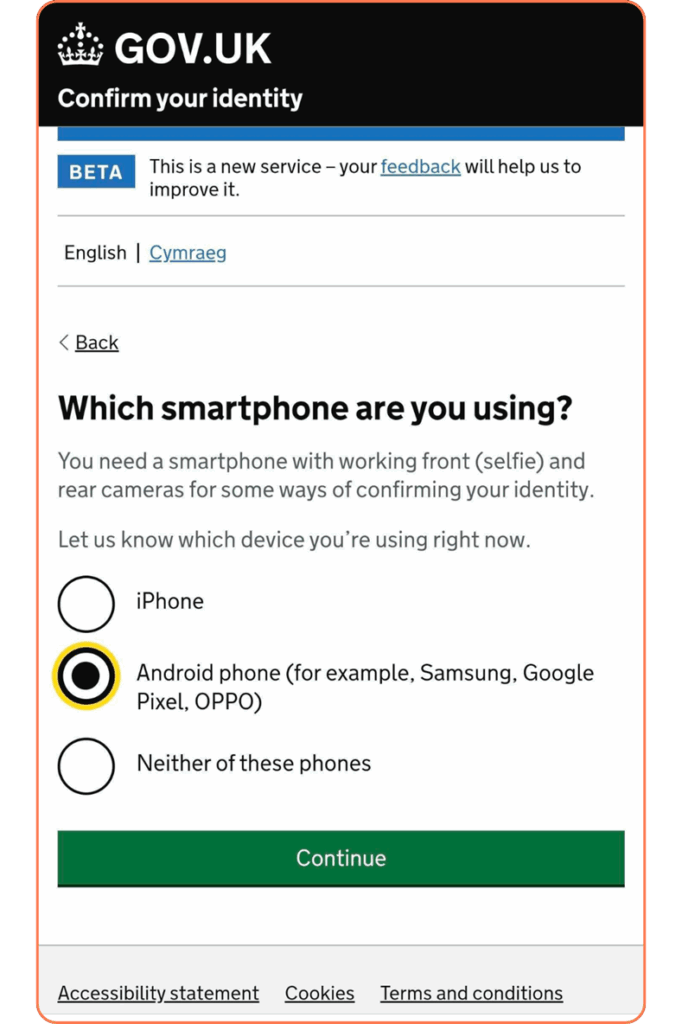
Step 14: Select which smartphone you’re using and Continue.
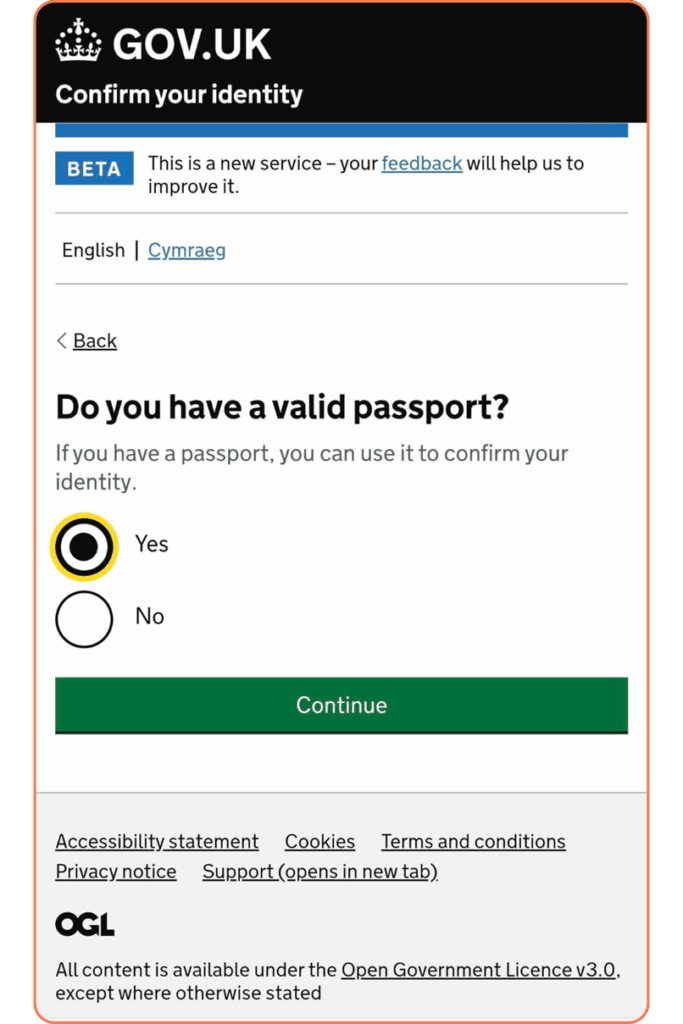
Step 15: Select whether or not you have a valid passport, we’ve selected “Yes”, then Continue.
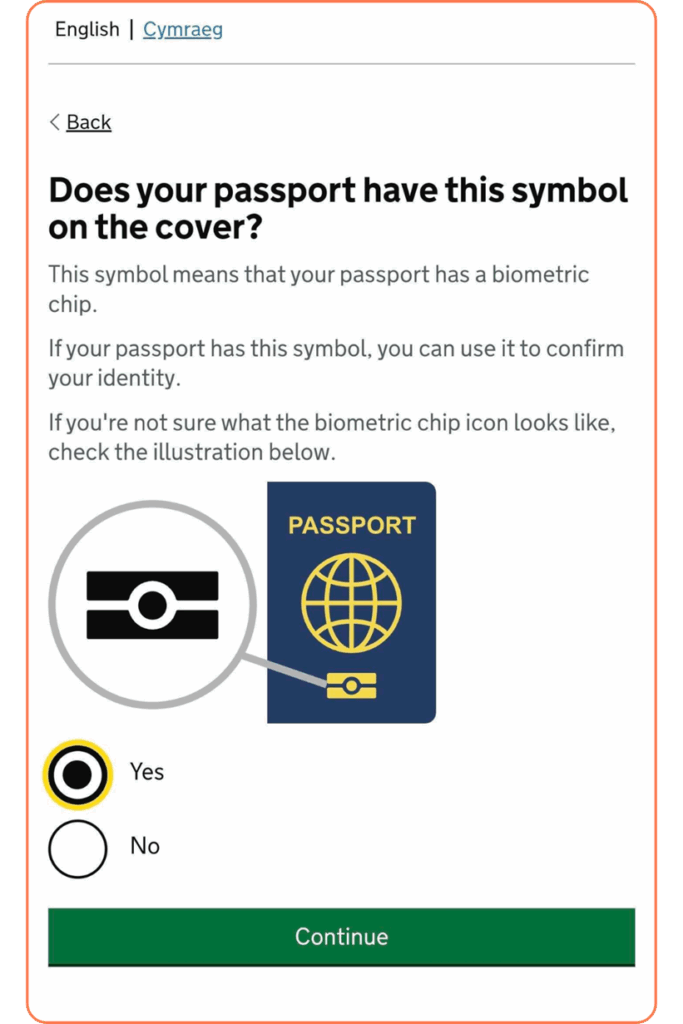
Step 16: Select whether or not your passport has this symbol on the cover, we’ve selected “Yes”, then Continue.
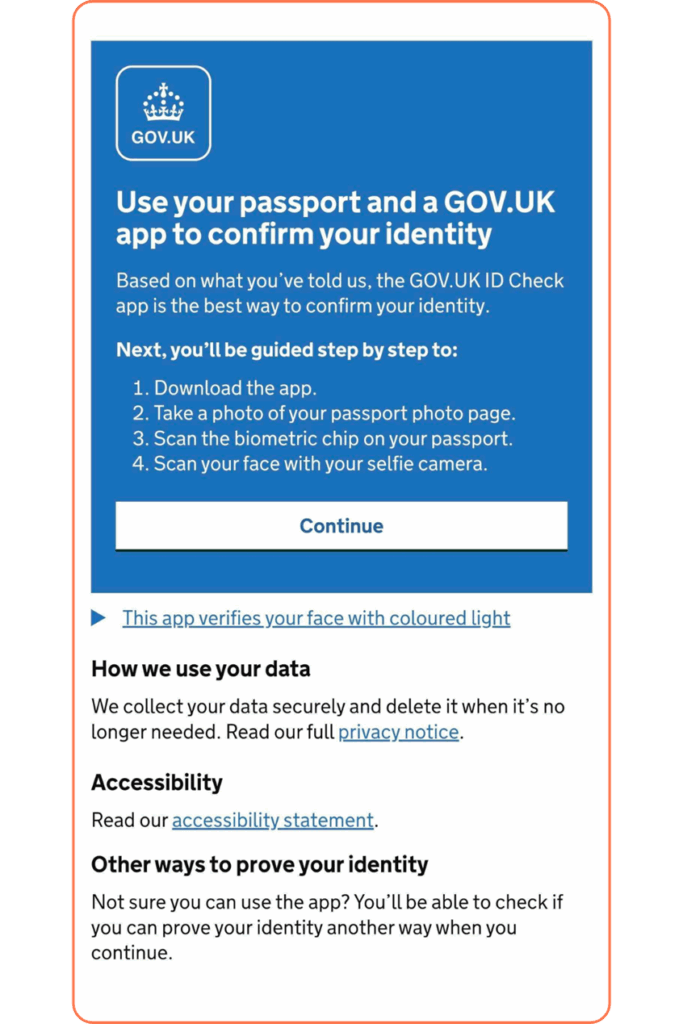
Step 17: To use your passport and the ID Check app to verify your identity, click Continue.
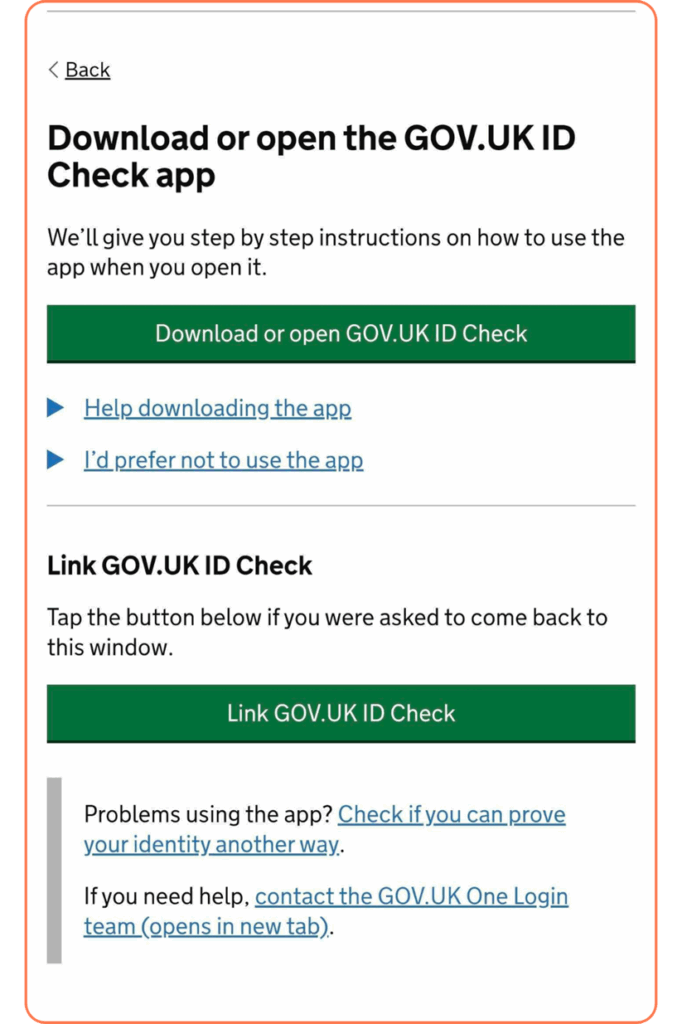
Step 18: IMPORTANT: Keep this specific page open or bookmarked as you need to come back to it, then click Download GOV.UK ID Check app.
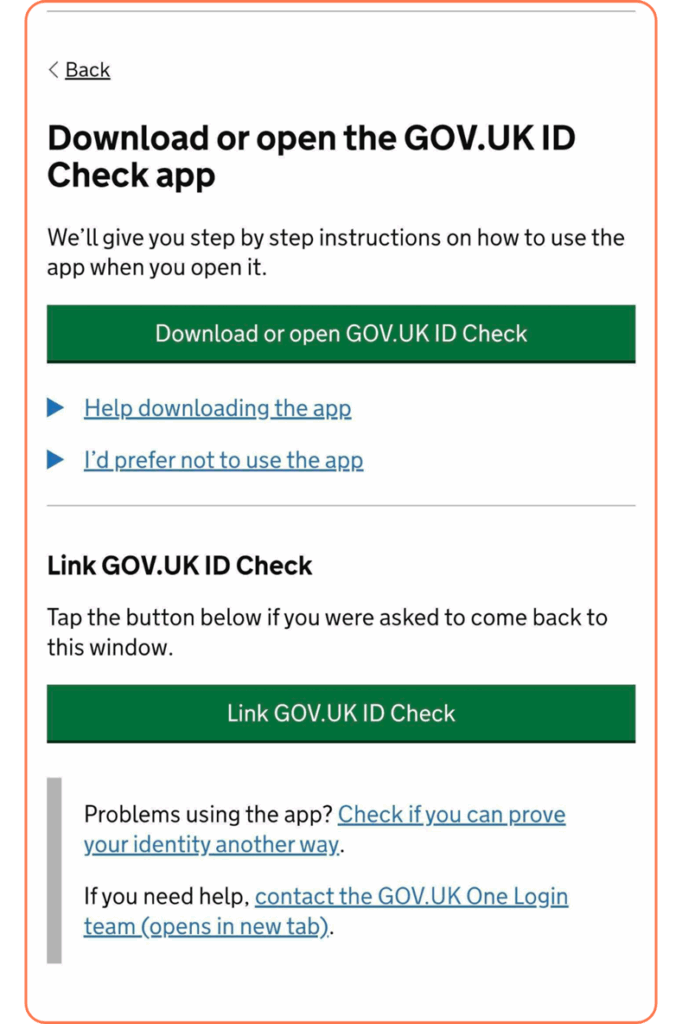
Step 19: Once downloaded, return to this page and click Link GOV.UK ID Check.
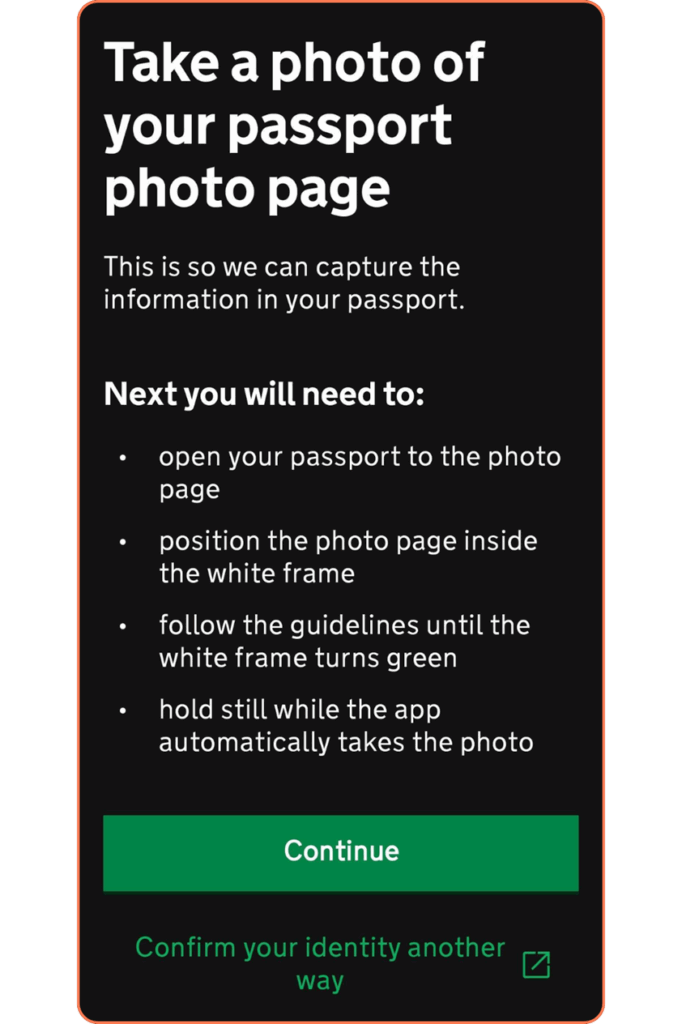
Step 20: Once linked, on the app, you’ll see this page, click Continue to scan your passport’s photo page.
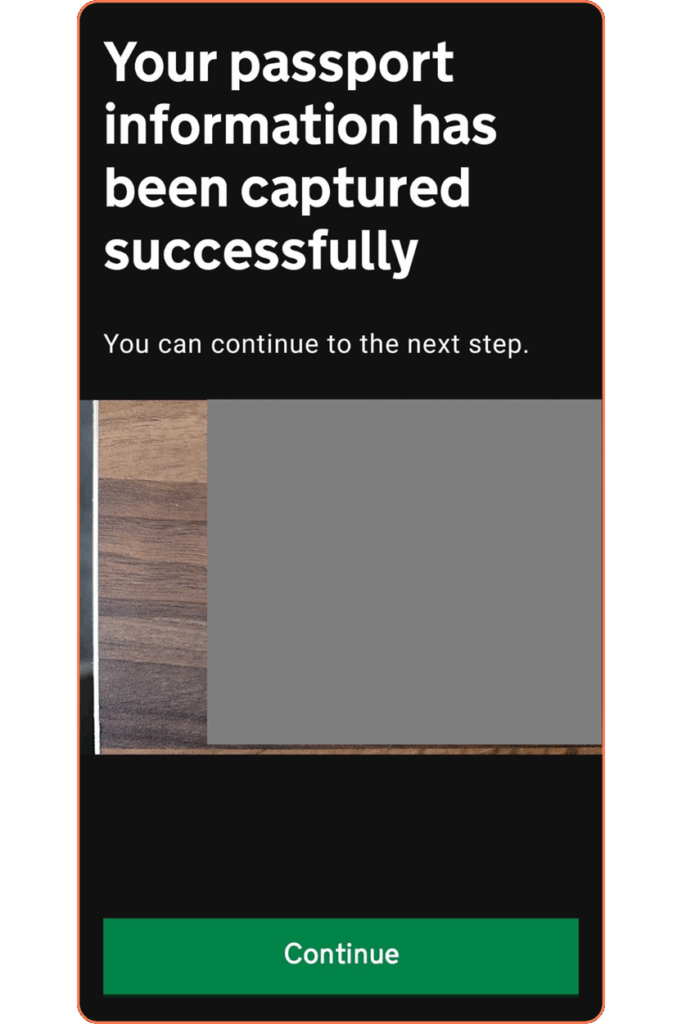
Step 21: Once scanned, click Continue.
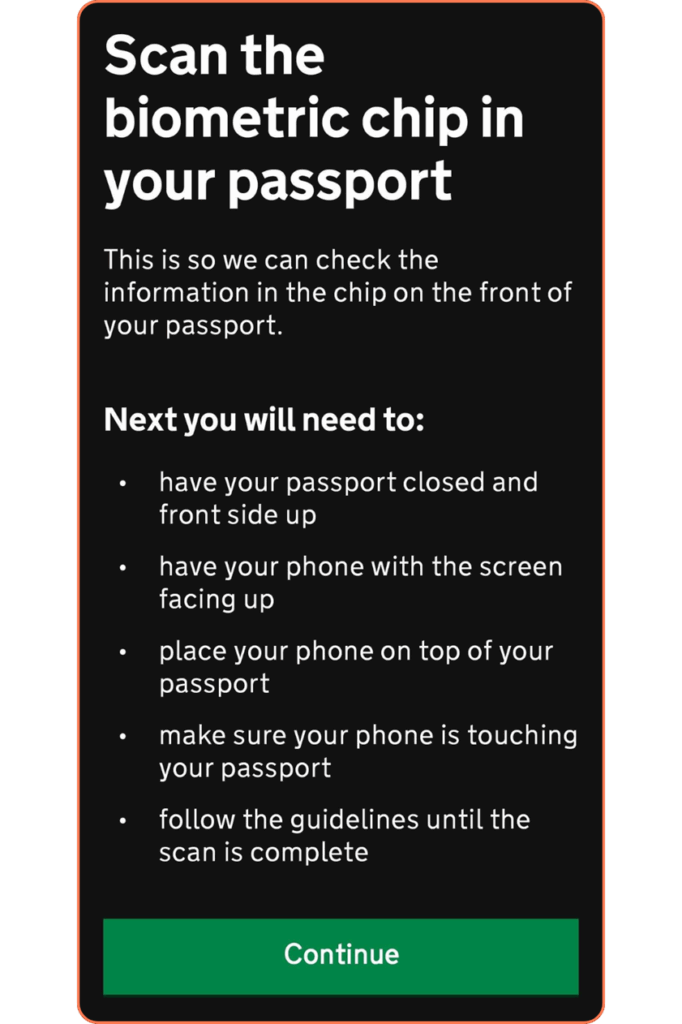
Step 22: Next, follow the prompts and click Continue to scan the biometric chip on your passport’s cover page.
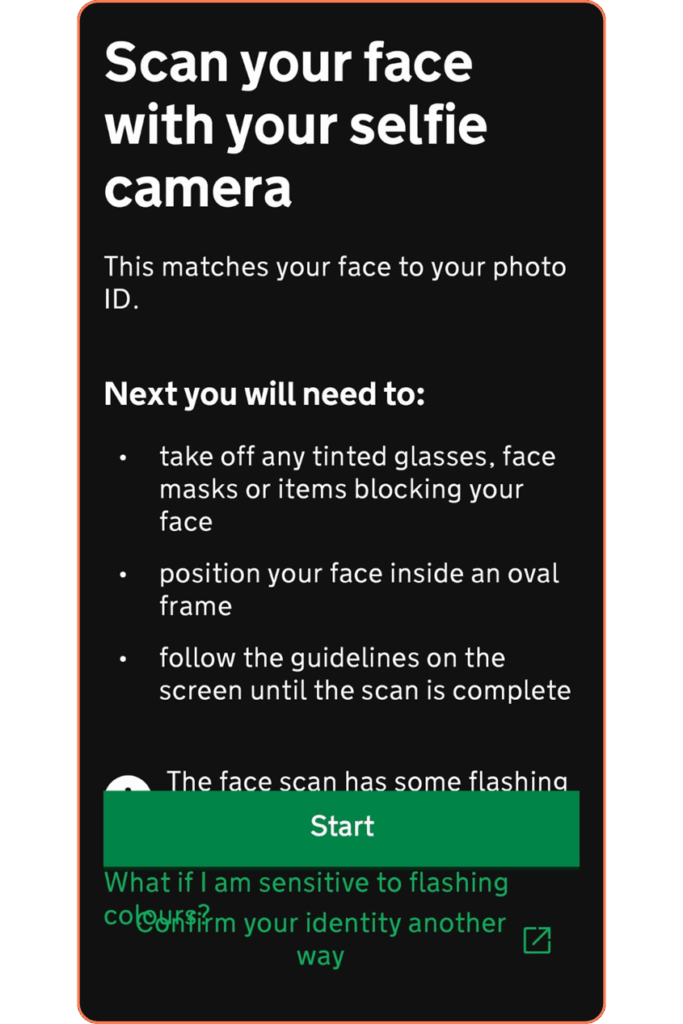
Step 23: Lastly, click Start to scan your face with your selfie camera.
Step 24: Click Go to GOV.UK to exit the app.
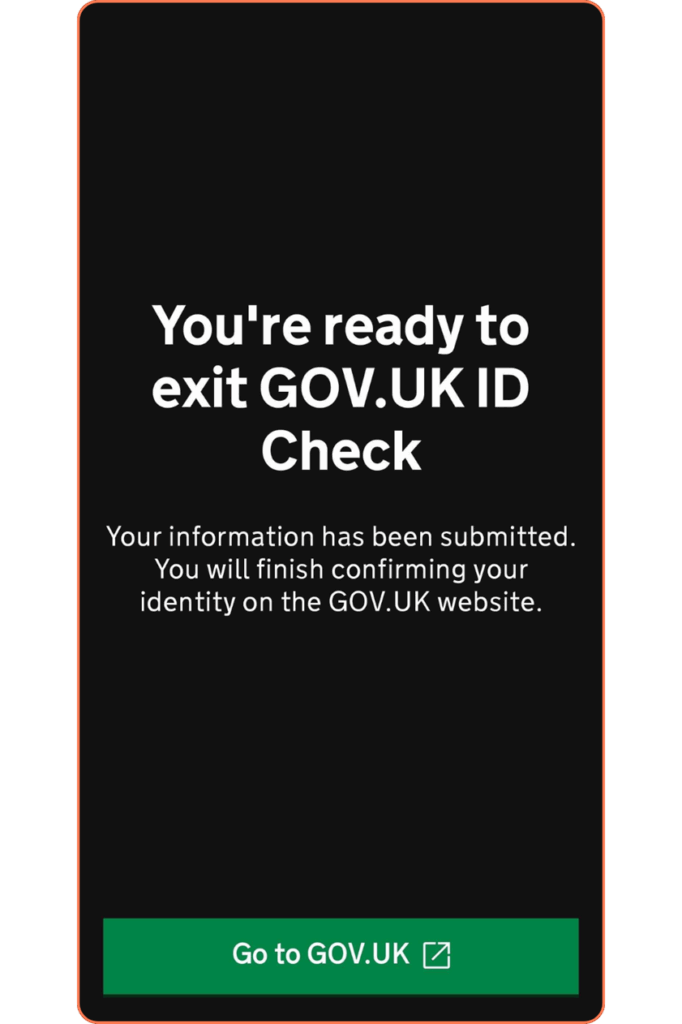
Step 25: A confirmation message should appear, click Continue
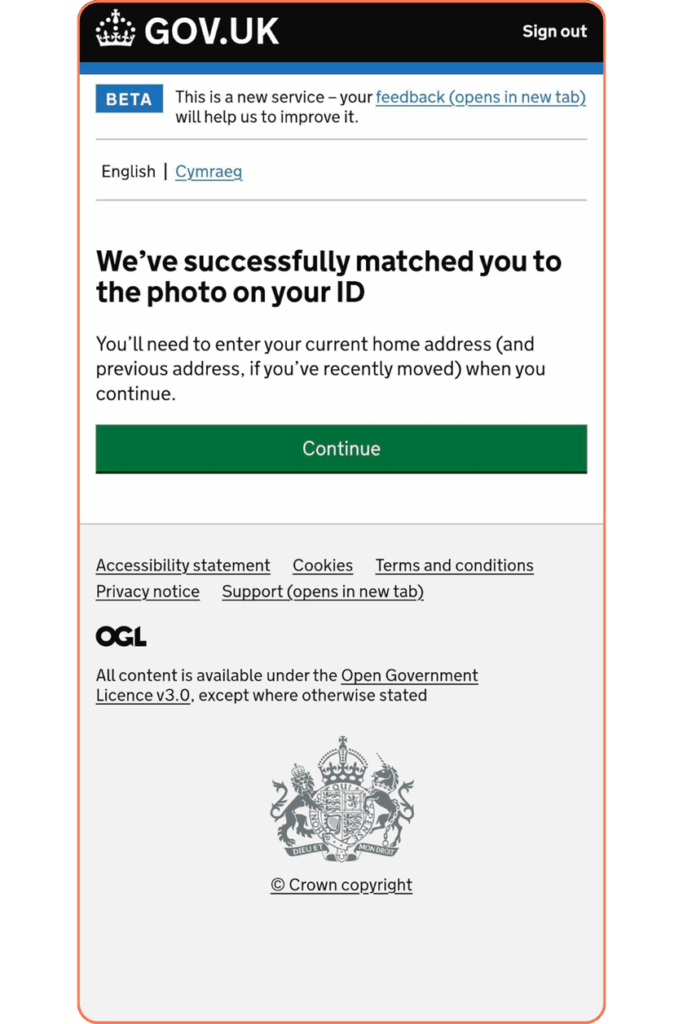
Step 26: Enter your postcode and click Find address
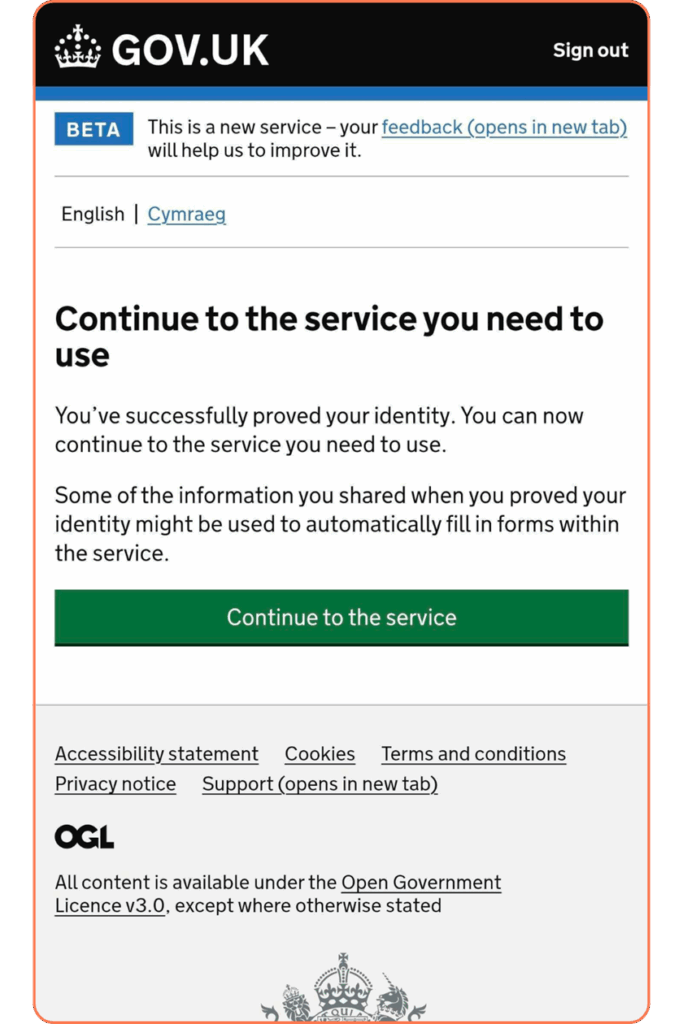
Step 27: On this page, click Continue to the service
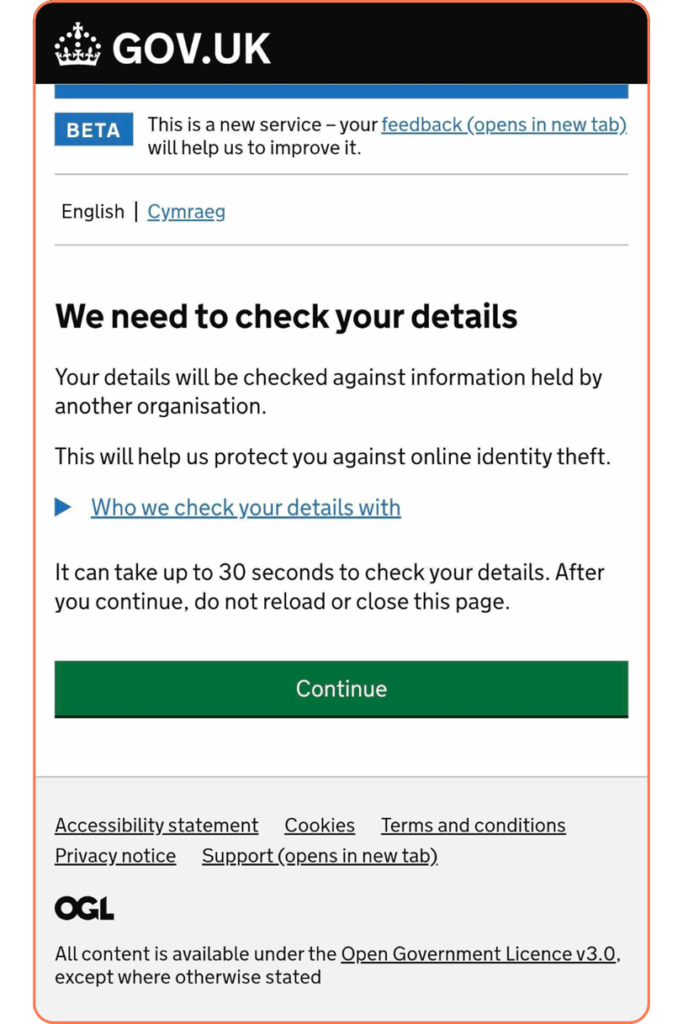
Step 28: Allow Gov.UK to check your details by clicking Continue
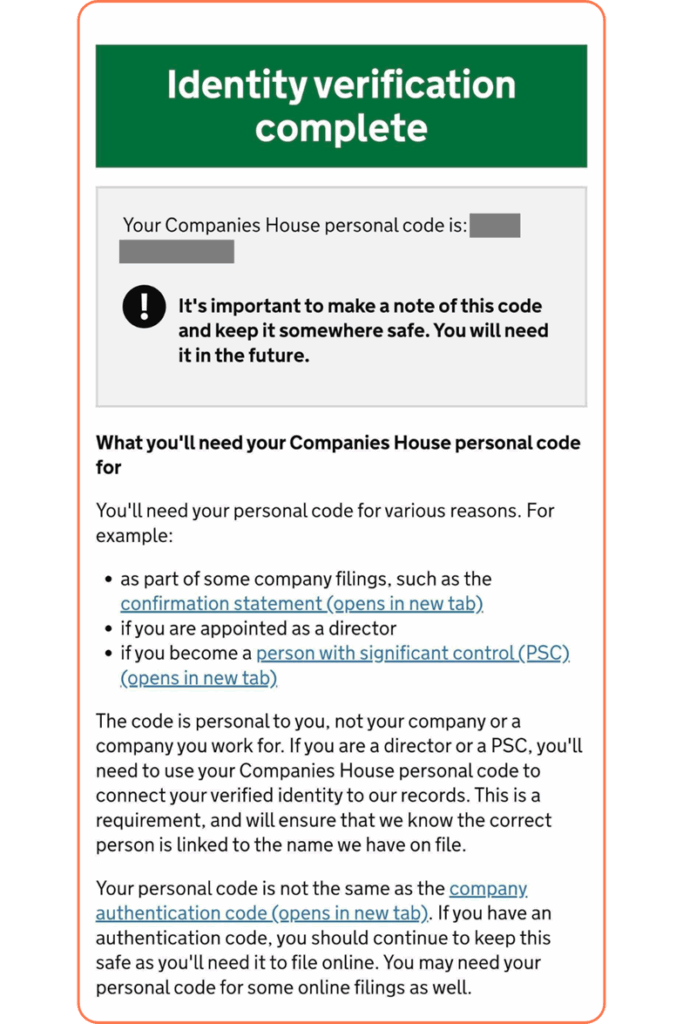
Step 29: The final page should state “Identity verification complete.” Ensure you safely store your Companies House personal code as you will need this in the future. You’re done!